
Welcome!
Thank you for choosing WinSMS.
Sign up below to stay informed about WinSMS App updates and special offers on SMS credits.
Marketplace App Installation Instructions - Sub Account
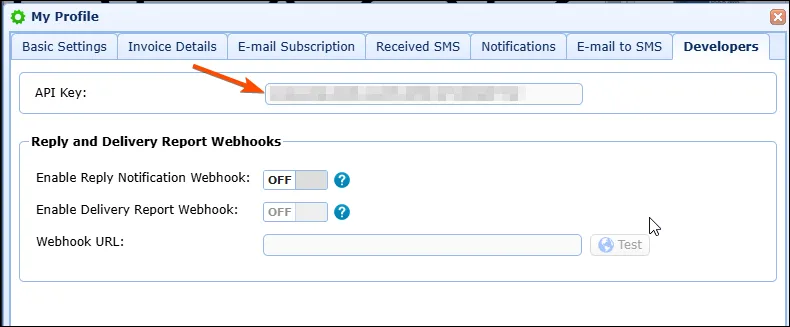
In the WinSMS Client Zone, go to My Profile -> Developers -> API Key and copy your WinSMS API key:
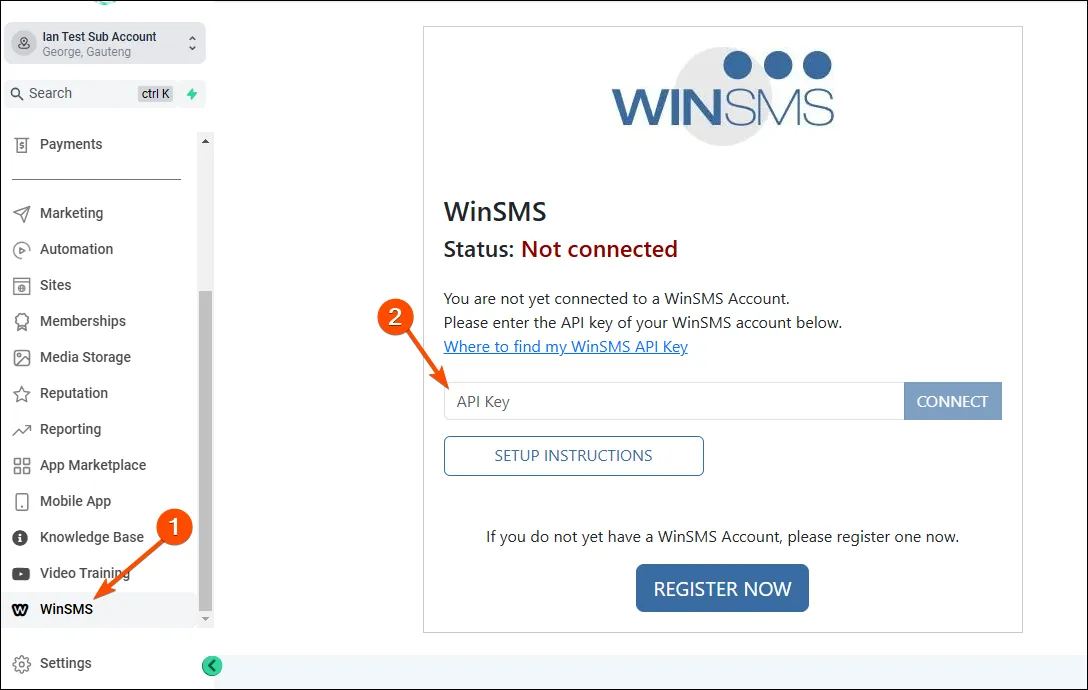
Login to your CRM dashboard and click on "WinSMS" in the left Menu (1).
Paste your API key into the provided field (2).
Click [Connect]:
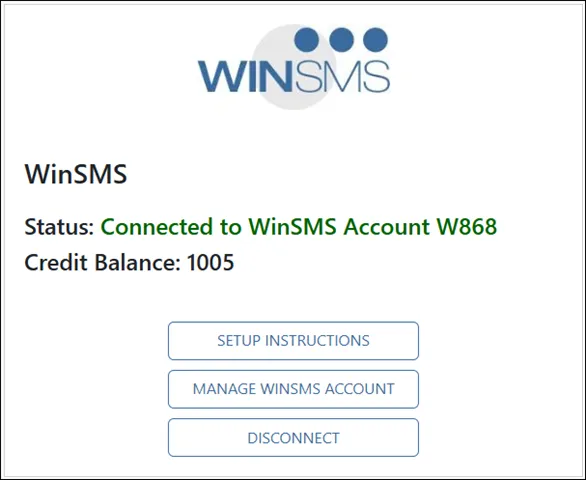
You will see the following after a successful connection to WinSMS:
The last step required before you can start sending SMS via WinSMS is to change your "Default SMS Provider" to use WinSMS. However, this can only be done by your Agency or platform administrator.
Please reach out to them and ask them to change your "Default SMS Provider" to "WinSMS".
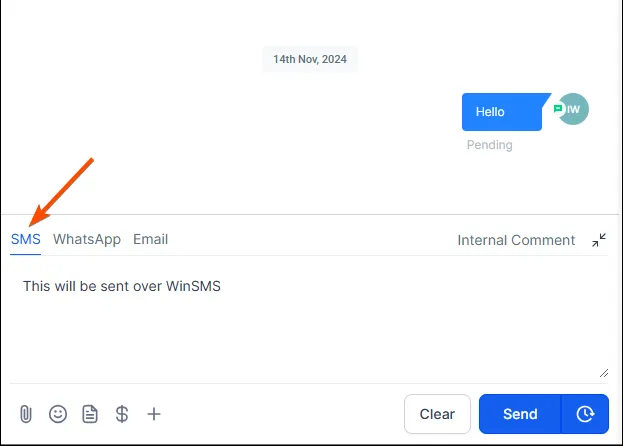
Once the above step as been done, you will be able to send and receive messages in conversations and workflows, using the regular "SMS" channel:
Need assistance?
- Submit a technical support ticket here.
- General inquiries: [email protected]
- Phone support: +27116756967 (8AM-5PM UTC+02:00)
- Book an on boarding call here.